Manager Onboarding Guide
Welcome to Drivestream BASIC
Thank you for choosing Drivestream, the hassle-free way to see where your vehicles are in real time and manage employee timesheets.
1. Getting Started with the Fleet Manager Portal
Account Creation and Setup
Please create your account at https://catraktech.com. After you sign-up you will receive a Welcome Email with your portal login link to create your Admin password.
After creating your password log in at https://fleet.drivestreamgps.com/login to set up your account and add drivers/field techs you would like to monitor. We recommend using a desktop or tablet to access the Fleet Manager portal for the best experience.
2. Understanding Roles in the Fleet Manager Portal
Managers and Admins access Drivestream and their fleet information through the Drivestream Fleet Manager Portal website located at https://fleet.drivestreamgps.com/login. This site provides access for Managers to view vehicles in real-time, setup and manage users, and access reports. It enables Admins to adjust license, billing and payment details.
Drivers access Drivestream through the Drivestream Driver App on their mobile device.
Users can be assigned multiple roles (ie. both a manager and a driver) and those roles can be adjusted within Users menu in the Fleet Manager Portal.
Driver Role
Drivers access Drivestream through a mobile application, the Drivestream Driver app, found on the Google Play and Apple App stores. Through the app drivers can track and share their vehicle location while On Duty. Drivers use their mobile number to login to the app on their device. A driver’s user profile and mobile phone must be setup by a manager within the Fleet Manager portal before they are able to logon.
In the Drivestream Driver App drivers can see their own location, set their work schedule, select a vehicle, toggle their status (On Duty, On Break, Off Duty) and view recent trip reports. Drivers do not have access to the Fleet Manager portal.
Manager Role
Managers can use their email to access the Fleet Manager Portal at https://fleet.drivestreamgps.com/login. Managers have access to tracking, reports, and user/vehicle settings. Managers cannot access fleet subscription, payment and billing settings which are restricted to admin users. Managers cannot access the Drivestream Driver App unless they are also assigned a Driver role in the Fleet Manager portal.
Admin Role
Each fleet’s original user profile is assigned the admin role. This is the only user that can access and update fleet subscription licenses, payment method and billing settings within the Fleet Manager Portal. To update the admin role to another user or adjust the phone and email of the admin role user please contact support at help@catraktech.com or (833)705-0011.
Drivers access Drivestream through the Drivestream Driver App on their mobile device.
3. Fleet Manager Portal Fleet Setup
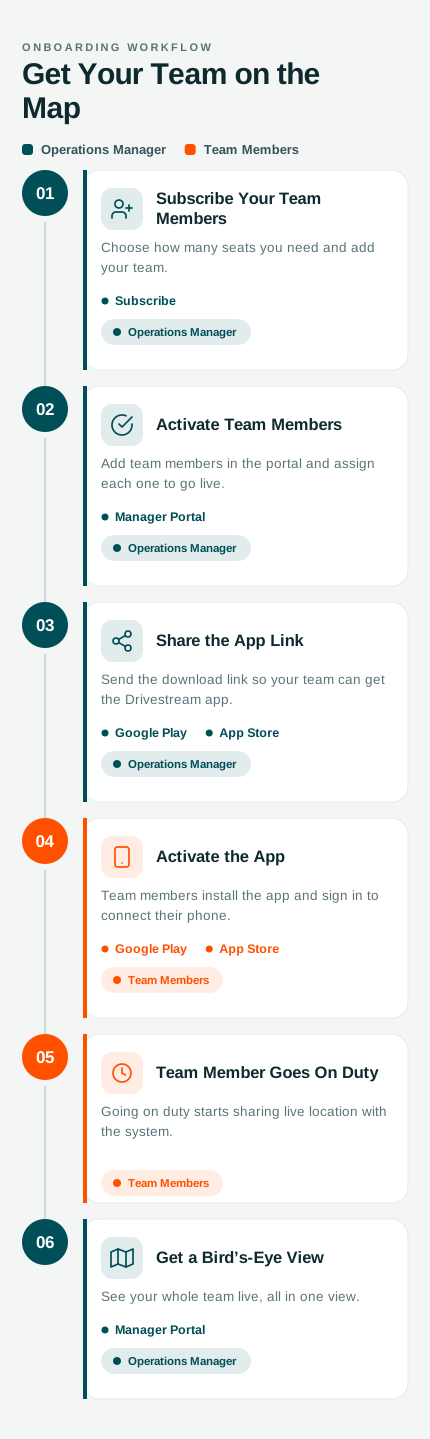
Step 1: Ensure you have subscribed to the right number of licenses
• How many vehicles do you want to track?
• How many field technicians or drivers will need the mobile app?
Remember that each driver using the app requires a license. You can always add or remove licenses later the portal.
Step 2: Configure your fleet
In the portal, go to Settings:
• Set Fleet Name, Measurement Units (Imperial/Metric)
Step 3: Add vehicles
In the portal, go to Vehicles > Click Add Vehicle:
• Required: Nickname, VIN
• Optional: License Plate, Country, State
Step 4: Add drivers in the Fleet Manager Portal
In the portal, go to Users > Click Add User
• Add the driver's first & last name, role= Driver
• Add the driver's mobile phone number which is required for driver app login
• Mark User Status=Active
• Assign the vehicle
• Set work schedule
Step 5: Driver Mobile App Instructions
Instruct your drivers to download the app from the Google Play and Apple App stores and sign in with the mobile number associated with their profile. To run effectively, the app requires iOS 14.0 or later and Android 10.0 or later.
Driver Mobile App Logging In
• Enter mobile number
• Enter SMS verification code
Driver Mobile App Start/stop Tracking
Tracking starts once a driver is logged in and On Duty. Tracking stops when a driver is On Break or selects End Duty.
• Tap Start Duty at the beginning of the workday
• Tap Start Break to log start of break and pause tracking
• Tap End Break to log end of break and resume tracking
• Tap End Duty when done
If using scheduled tracking, users will get push notifications to remind them to start/stop shifts, as well as when Trip Reporting has started and ended.
6. Monitor your fleet in the Fleet Manager Portal
See real-time vehicle locations and trip histories and driver status (active or inactive).
Reports
Access detailed and exportable Trip Reports, Timesheets, Fleet Metrics and Geofence Activity.
Trip Reports includes metrics on recently recorded trips and are filterable by date, vehicle and driver.
Click the triangle in the leftmost column to display a map of the trip,
Timesheets includes metrics on hours worked, breaks and overtime and are filterable by date and driver.
Fleet Metrics includes metrics on vehicles driven, distance, duration, most recent trip and are filterable by date and vehicle.
Geofence Activity includes metrics on geofences including driver/vehicle arrival time, departure time, time spent and are filterable by date, geofence, driver, vehicle
Geofences
Geofencing is a location-based technology that creates an invisible, virtual boundary around a real-world geographic area. When a device crosses this digital perimeter,
Drivestream logs the activity and initiates notifications in the portal (if notifications alerts are selected).
• To setup Geofences for your fleet, navigate to the Geofences menu in the admin portal and enter an address.
• Users can then modify the Geofence boundary, set notification and display preferences on the tracking map.
• When using the polygon boundary tool, double click on the initial boundary line point to add and modify the boundary permitter.
Driver Activity
The Driver Activity feature provides an interactive visual summary of a Driver’s trips throughout a single day. Metrics include number of trips, total distance, driving time, stopped and driving percentage.
Curious about how tracking works?
If Location Sharing is Set to When Using the App Data is sent while the app is open and active
• If the app is backgrounded for 10+ mins, it pauses uploads until reopened.
• If you do not return to the app, your data will be gathered and sent approximately once per hour when you are on duty.
If Location Sharing is Set to Always (Recommended) Data is sent at regular, frequent intervals as long as the app is running on the phone. Note: this setting may increase battery usage. It is recommended to keep your phone connected to a power source while tracking is active.
Need Help?
We're here for you. Reach out to our support team anytime at help@catraktech.com.